


Hi, I’m HAYAO, the programmer. Twitter
I’ve written another technical article. This time, it’s aimed at people who actually work with Unity. I got some requests for source code samples after the previous article, so this one will focus on explaining the code itself.
Those of you who have played Sister, Other, Paranoia will probably recognize this screen.
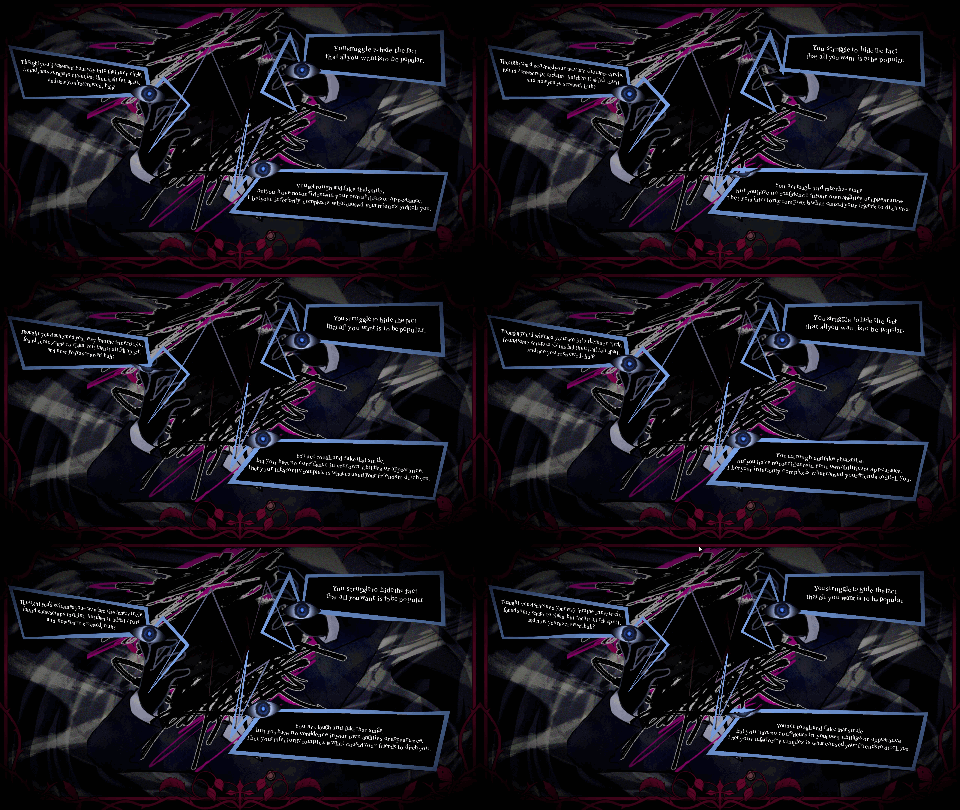
This time, I’ll show you an easy way to implement the wriggling line and text animations used on this screen.
In the previous article, I wrote a little about how I came up with this effect, so if you’re interested, have a look here. →

Making things wriggle gives them a more organic, unsettling feel.
(According to us, anyway.)
Feel free to use it as a little visual accent.
With that said, let’s go over the two small effect components used here.
- UgoUgoDoodle — A URP shader that makes lines wriggle when applied to a LineRenderer
- CreepyTextWiggle — A C# component that shakes and tilts TextMeshPro characters one by one
Part 1. UgoUgoDoodle — Wriggling Doodle Shader for LineRenderer
Overview
The effect is broadly divided into two stages:
Vertex shader — moves the line itself
Fragment shader — distorts the line width and dirties up its edges
Full source:
Shader "HazeDenki/LineRenderer/UgoUgoDoodleVertex"
{
    Properties
    {
        _MainTex ("Stroke Texture", 2D) = "white" {}
        _Color ("Tint", Color) = (0,0,0,1)


        _AlphaCutoff ("Alpha Cutoff", Range(0,1)) = 0.35
        _EdgeSoftness ("Edge Softness", Range(0.001,0.5)) = 0.08


        _VertexXOffset ("Vertex X Offset", Range(0,0.1)) = 0.006
        _VertexYOffset ("Vertex Y Offset", Range(0,0.1)) = 0.02
        _VertexNoiseFreq ("Vertex Noise Freq", Float) = 8.0
        _VertexNoiseSpeed ("Vertex Noise Speed", Float) = 6.0


        _ScrollX ("Scroll X", Float) = 0.6
        _WaveAmp ("Wave Amplitude", Range(0,0.2)) = 0.02
        _WaveFreq ("Wave Frequency", Float) = 10.0
        _WaveSpeed ("Wave Speed", Float) = 6.0


        _JitterAmp ("Jitter Amplitude", Range(0,0.1)) = 0.01
        _JitterSpeed ("Jitter Speed", Float) = 10.0


        _WidthNoiseAmp ("Width Noise Amp", Range(0,0.3)) = 0.05
        _WidthNoiseFreq ("Width Noise Freq", Float) = 8.0
        _WidthNoiseSpeed ("Width Noise Speed", Float) = 5.0
        _BaseHalfWidth ("Base Half Width", Range(0.01,0.5)) = 0.18


        _StepFPS ("Step FPS", Float) = 8.0
    }


    SubShader
    {
        Tags
        {
            "RenderPipeline"="UniversalPipeline"
            "Queue"="Transparent"
            "RenderType"="Transparent"
        }


        Blend SrcAlpha OneMinusSrcAlpha
        ZWrite Off
        Cull Off


        Pass
        {
            Name "ForwardUnlit"


            HLSLPROGRAM
            #pragma vertex vert
            #pragma fragment frag


            #include "Packages/com.unity.render-pipelines.universal/ShaderLibrary/Core.hlsl"


            struct Attributes
            {
                float4 positionOS : POSITION;
                float2 uv         : TEXCOORD0;
                float4 color      : COLOR;
            };


            struct Varyings
            {
                float4 positionHCS : SV_POSITION;
                float2 uv          : TEXCOORD0;
                float4 color       : COLOR;
            };


            TEXTURE2D(_MainTex);
            SAMPLER(sampler_MainTex);


            CBUFFER_START(UnityPerMaterial)
                float4 _MainTex_ST;
                float4 _Color;


                float _AlphaCutoff;
                float _EdgeSoftness;


                float _VertexXOffset;
                float _VertexYOffset;
                float _VertexNoiseFreq;
                float _VertexNoiseSpeed;


                float _ScrollX;
                float _WaveAmp;
                float _WaveFreq;
                float _WaveSpeed;


                float _JitterAmp;
                float _JitterSpeed;


                float _WidthNoiseAmp;
                float _WidthNoiseFreq;
                float _WidthNoiseSpeed;
                float _BaseHalfWidth;


                float _StepFPS;
            CBUFFER_END


            float hash21(float2 p)
            {
                p = frac(p * float2(123.34, 456.21));
                p += dot(p, p + 45.32);
                return frac(p.x * p.y);
            }


            float noise21(float2 p)
            {
                float2 i = floor(p);
                float2 f = frac(p);


                float a = hash21(i);
                float b = hash21(i + float2(1.0, 0.0));
                float c = hash21(i + float2(0.0, 1.0));
                float d = hash21(i + float2(1.0, 1.0));


                float2 u = f * f * (3.0 - 2.0 * f);


                return lerp(
                    lerp(a, b, u.x),
                    lerp(c, d, u.x),
                    u.y
                );
            }


            float GetSteppedTime(float rawTime, float fps)
            {
                fps = max(fps, 0.01);
                return floor(rawTime * fps) / fps;
            }


            Varyings vert(Attributes IN)
            {
                Varyings OUT;


                float steppedTime = GetSteppedTime(_Time.y, _StepFPS);


                float2 uv = TRANSFORM_TEX(IN.uv, _MainTex);


                float vertexNoiseA = noise21(float2(uv.x * _VertexNoiseFreq, steppedTime * _VertexNoiseSpeed));
                float vertexNoiseB = noise21(float2(uv.x * (_VertexNoiseFreq * 1.73) + 13.17, steppedTime * (_VertexNoiseSpeed * 0.87)));


                float xOffset = (vertexNoiseA - 0.5) * 2.0 * _VertexXOffset;
                float yOffset = (vertexNoiseB - 0.5) * 2.0 * _VertexYOffset;


                yOffset += sin(uv.x * (_VertexNoiseFreq * 0.8) + steppedTime * (_VertexNoiseSpeed * 1.2)) * (_VertexYOffset * 0.35);


                float3 posOS = IN.positionOS.xyz;
                posOS.x += xOffset;
                posOS.y += yOffset;


                VertexPositionInputs posInputs = GetVertexPositionInputs(posOS);


                OUT.positionHCS = posInputs.positionCS;
                OUT.uv = uv;
                OUT.color = IN.color;


                return OUT;
            }


            half4 frag(Varyings IN) : SV_Target
            {
                float steppedTime = GetSteppedTime(_Time.y, _StepFPS);


                float2 uv = IN.uv;


                uv.x += steppedTime * _ScrollX;
                uv.y += sin(uv.x * _WaveFreq + steppedTime * _WaveSpeed) * _WaveAmp;


                float jitter = (noise21(float2(uv.x * 8.0, steppedTime * _JitterSpeed)) - 0.5) * 2.0;
                uv.y += jitter * _JitterAmp;


                half4 tex = SAMPLE_TEXTURE2D(_MainTex, sampler_MainTex, uv);


                float widthNoise = (noise21(float2(uv.x * _WidthNoiseFreq, steppedTime * _WidthNoiseSpeed)) - 0.5) * 2.0;
                float halfWidth = _BaseHalfWidth + widthNoise * _WidthNoiseAmp;


                float centeredY = abs(IN.uv.y - 0.5);
                float widthMask = 1.0 - smoothstep(
                    halfWidth,
                    halfWidth + _EdgeSoftness,
                    centeredY
                );


                float edgeNoise = (noise21(float2(uv.x * 20.0 + 7.3, steppedTime * 4.0 + 1.8)) - 0.5) * 0.15;


                float a = tex.a * widthMask;
                a = smoothstep(
                    _AlphaCutoff - _EdgeSoftness + edgeNoise,
                    _AlphaCutoff + edgeNoise,
                    a
                );


                half4 col = tex * _Color * IN.color;
                col.a *= a;


                return col;
            }
            ENDHLSL
        }
    }
}
Step 3: Create a material
Go to:
Create > Material
Then change its Shader to:
HazeDenki/LineRenderer/UgoUgoDoodleVertex
Property Values
Color
White (1,1,1,1)
Apply the actual color using the LineRenderer’s Gradient.
AlphaCutoff
Controls how broken-up and scratchy the line looks.
The higher the value, the more parts of the line disappear.
EdgeSoftness
Controls the softness of the line’s edges.
VertexXOffset
Amount of vertex movement, in world units.
VertexNoiseFreq
Controls the detail and speed of the movement.
ScrollX
Controls how fast the texture scrolls.
WaveAmp / Freq / Speed
Controls the waviness of the texture UVs.
JitterAmp / Speed
Controls the smaller jittering motion.
WidthNoiseAmp / Freq / Speed
Controls fluctuations in the line width.
StepFPS
The frame-stepping FPS.
This is the most important setting.
Step 4: Set up the LineRenderer
- Assign this material under Materials
- Set Texture Mode = Stretch
- Set Width to around 1.5–2× the thickness you actually want to display, then fine-tune while testing
- Set Alignment = View. For 2D, TransformZ also works
- Setting Corner Vertices to 2–4 helps prevent the width mask from breaking at corners. If you want sharp right angles like in the sample above, set it to 0
- Use World Space depends on your use case. Since the shader’s vertex offset is added in object space, its behavior is the same even when using world-coordinate mode
Step 5: Add color
Rather than using the material’s Color property, apply colors through the LineRenderer’s Color Gradient (vertex colors).
That way, you can use a single material for lines of multiple colors.
The final color is calculated as:
Texture RGB × _Color × Vertex Color
So if you draw your stroke texture in white (RGB = 1), the Gradient color will appear as-is.
If you use a black stroke texture, the Gradient color won’t come through and the result will stay black.
From there, just run the scene and tweak the shader properties until you get something close to the look you want.
Part 2. CreepyTextWiggle — TextMeshPro Character Wiggle
Overview
CreepyTextWiggle calculates a position offset and Z rotation for each individual character every frame—or at a specified FPS—then rewrites the character’s four vertices and applies the result to the mesh using UpdateGeometry.
It does not modify the character colors or outlines.
Sample code:
using UnityEngine;
using TMPro;


[RequireComponent(typeof(TMP_Text))]
public class CreepyTextWiggle : MonoBehaviour
{
    [Header("Motion")]
    [SerializeField] private float positionAmplitude = 1.0f;
    [SerializeField] private float rotationAmplitude = 1.2f;
    [SerializeField] private float speed = 2.0f;


    [Header("Noise")]
    [SerializeField] private float noiseScale = 1.3f;
    [SerializeField] private float perCharacterPhase = 0.37f;


    [Header("Frame Rate")]
    [Tooltip("Animation update FPS. Set to 0 or below to update every frame with no limit.")]
    [SerializeField] private float targetFps = 0f;
    [Tooltip("For this many milliseconds after the text changes, the FPS limit is disabled and the animation updates smoothly. Set to 0 to always throttle.")]
    [SerializeField, Min(0f)] private float revealGracePeriodMs = 150f;


    private TMP_Text tmpText;
    private Vector3[][] baseVertices;
    private bool dirty = true;
    private float lastSampledTime = -1f;
    private float lastTextChangeTime = -999f;
    private bool isUGUI;


    private void Awake()
    {
        tmpText = GetComponent<TMP_Text>();
        isUGUI = tmpText is TextMeshProUGUI;
    }


    private void OnEnable()
    {
        TMPro_EventManager.TEXT_CHANGED_EVENT.Add(HandleTextChanged);
        if (isUGUI) Canvas.willRenderCanvases += ApplyWiggle;
        dirty = true;
    }


    private void OnDisable()
    {
        TMPro_EventManager.TEXT_CHANGED_EVENT.Remove(HandleTextChanged);
        if (isUGUI) Canvas.willRenderCanvases -= ApplyWiggle;
    }


    private void HandleTextChanged(Object obj)
    {
        if (obj == tmpText)
        {
            dirty = true;
            lastTextChangeTime = Time.unscaledTime;
        }
    }


    private void CacheBaseVertices()
    {
        var textInfo = tmpText.textInfo;
        int meshCount = textInfo.meshInfo.Length;
        if (baseVertices == null || baseVertices.Length != meshCount)
            baseVertices = new Vector3[meshCount][];


        for (int i = 0; i < meshCount; i++)
        {
            var src = textInfo.meshInfo[i].vertices;
            if (baseVertices[i] == null || baseVertices[i].Length != src.Length)
                baseVertices[i] = new Vector3[src.Length];
            System.Array.Copy(src, baseVertices[i], src.Length);
        }
    }


    private void LateUpdate()
    {
        if (!isUGUI) ApplyWiggle();
    }


    private void ApplyWiggle()
    {
        var textInfo = tmpText.textInfo;
        if (textInfo.characterCount == 0) return;


        if (dirty)
        {
            CacheBaseVertices();
            dirty = false;
            lastSampledTime = -1f; // Force reapplication after text changes
        }
        if (baseVertices == null) return;


        bool inReveal = (revealGracePeriodMs > 0f) &&
                        ((Time.unscaledTime - lastTextChangeTime) < revealGracePeriodMs * 0.001f);


        float sampledTime;
        if (targetFps > 0f && !inReveal)
        {
            float step = 1f / targetFps;
            sampledTime = Mathf.Floor(Time.unscaledTime / step) * step;
        }
        else
        {
            sampledTime = Time.unscaledTime;
        }


        // Skip if time has not advanced; the mesh keeps its previous-frame state
        if (sampledTime == lastSampledTime) return;
        lastSampledTime = sampledTime;


        float time = sampledTime * speed;


        for (int i = 0; i < textInfo.characterCount; i++)
        {
            var charInfo = textInfo.characterInfo[i];
            if (!charInfo.isVisible) continue;


            int matIdx = charInfo.materialReferenceIndex;
            int vertIdx = charInfo.vertexIndex;
            if (baseVertices[matIdx] == null || vertIdx + 3 >= baseVertices[matIdx].Length) continue;


            var verts = textInfo.meshInfo[matIdx].vertices;


            // Use the cached clean vertices as the source
            Vector3 v0 = baseVertices[matIdx][vertIdx + 0];
            Vector3 v1 = baseVertices[matIdx][vertIdx + 1];
            Vector3 v2 = baseVertices[matIdx][vertIdx + 2];
            Vector3 v3 = baseVertices[matIdx][vertIdx + 3];
            Vector3 center = (v0 + v2) * 0.5f;


            float phase = i * perCharacterPhase;
            float nx = (Mathf.PerlinNoise(i * 0.173f, time * noiseScale) - 0.5f) * 2f;
            float ny = (Mathf.PerlinNoise(i * 0.417f, 100f + time * noiseScale) - 0.5f) * 2f;
            float sx = Mathf.Sin(time * 1.13f + phase);
            float sy = Mathf.Cos(time * 1.41f + phase * 1.7f);
            float sr = Mathf.Sin(time * 0.91f + phase * 2.3f);


            Vector3 offset = new Vector3(
                (sx * 0.6f + nx * 0.4f) * positionAmplitude,
                (sy * 0.6f + ny * 0.4f) * positionAmplitude,
                0f
            );
            float angle = (sr * 0.7f + nx * 0.3f) * rotationAmplitude;
            Quaternion rot = Quaternion.Euler(0f, 0f, angle);


            verts[vertIdx + 0] = rot * (v0 - center) + center + offset;
            verts[vertIdx + 1] = rot * (v1 - center) + center + offset;
            verts[vertIdx + 2] = rot * (v2 - center) + center + offset;
            verts[vertIdx + 3] = rot * (v3 - center) + center + offset;
        }


        for (int i = 0; i < textInfo.meshInfo.Length; i++)
        {
            textInfo.meshInfo[i].mesh.vertices = textInfo.meshInfo[i].vertices;
            tmpText.UpdateGeometry(textInfo.meshInfo[i].mesh, i);
        }
    }
}
Step 1: Add the script
Create:
Assets/Projects/Scripts/Effects/CreepyTextWiggle.cs
and paste in the code.
Save the C# file as UTF-8 with BOM.
Step 2: Add it to a TMP object
Either TextMeshProUGUI on a Canvas or TextMeshPro in world space is fine.
Because it uses:
[RequireComponent(typeof(TMP_Text))]
you won’t be able to attach it to an object that doesn’t have TMP.
Step 3: Configure the parameters
positionAmplitude
Controls how far the characters move.
rotationAmplitude
Controls how far each character rotates.
speed
Controls how fast the characters wriggle.
targetFps
Sets the FPS of the animation.
Step 4: Check the result
- Run the scene and check whether the characters are wiggling in place. If they gradually drift away, the cache isn’t being captured correctly, meaning TEXT_CHANGED_EVENT isn’t firing.
- When the text changes, check whether the “plain” unmodified text becomes visible even for an instant. If it does, increase revealGracePeriodMs.
- Check whether it continues moving while the game is paused, and make sure that behavior is what you want. If you want it to stop during pauses, use Time.time instead.
Effects that shake or distort text can quickly make it unreadable if you overdo them, so I recommend starting by setting the text and lines to the same FPS, then keeping the amplitudes fairly small.
These days, once you have some code to work from, you can also use AI to adapt it and integrate it smoothly into your own project.
I hope this is useful to someone.
HAYAO
Comments (0)
Leave a comment
No comments yet. Be the first to comment!